With AFAS HRM software, you arrange things like payroll processing, leave, absence and recruitment & selection. You streamline all HR processes and minimize their administration.
Work can be so much more fun and better. And with more consideration for society. In many organizations, people are busy doing the wrong things. Unnecessary actions, double work, fixing mistakes: it costs hands full of time and does not benefit quality.
AFAS Software therefore wants to inspire better business. And that is where Treams and Afas find each other. With the software of Treams you offer depth and support in performance management, talent development and engagement. The link between Treams and Afas enables you to spend time on what really matters: content, quality and job satisfaction!
Contents of this article
What are the benefits of integration with Afas?
You will experience the benefits of integration mainly in practice itself. Efficiency and minimizing errors are of course high on the list. But there are more benefits. We'll mention a few:
Working completely in the cloud
One-time data entry
Innovations in the software are constantly being added
Working via an app or the web
Dutch software parties; the data is in the Netherlands according to Dutch law
Daily backup
What is the process of integration like?
The process for setting up integrations is entirely online. You can set it up together with an expert from your team, with experience with Afas. If you have any questions, you can always schedule a moment with a Treams expert to be supported.
Time required: about 2 hours
Actions to be taken:
You can link Treams and Afas by entering the appropriate access keys in Treams and making a few simple selections (e.g., which organizations to load from Afas).
You select the date when employees will have access to Treams.
You can add any exclusions, specific employees or departments that should not have access to Treams.
Ready to get started? Below are the exact instructions for establishing the link.
What are the costs?
For the integration, you pay a fixed monthly fee of €125 (2024). You are assured that the integration is maintained and technical updates are made automatically.
What other links with Afas?
Ideally, you want to have as few different systems as possible because that may mean having to remember a new login with each system, entering data over and over again, having different analytics and not getting an overall picture. At the same time, each system has its own expertise. A total solution within one system will never offer you all the functionality and depth you need.
Afas does not only interface with Treams, but with many more systems. Afas' business software offers a wide range of options. In your case, determine which systems you work with or would like to work with and how links might work out for you in practice.
Here are some options to consider: afas interface outlook, afas interface rabobank, afas interface ing, afas interface uwv, afas interface, afas interface nationale nederlanden, afas interface topdesk, afas interface power bi, afas interface arbodienst, afas interface abn amro.
I'm sure there are many other possibilities that could be relevant to you.
How to create the link between Afas and Treams
If you now want to get started concretely making the link, you have received the instructions for that. Below we describe the concrete steps once again. This is very handy.
Want to know more about an integration of Afas and Treams?
The link between Treams and Afas has already proven to be a valuable choice for many of our customers. The best of both worlds in practice. Want to know how this can work for you? We would be happy to tell you more about it.
Do you want to integrate your AFAS environment with Treams? Then you've come to the right place!
1. Conditions for getting started
Setting up an AFAS connector is subject to the following terms and conditions:
Working completely in the cloud
One-time data entry
Innovations in the software are constantly being added
Working via an app or the web
Dutch software parties; the data is in the Netherlands according to Dutch law
Daily backup
In addition, there are some prerequisites for the data in AFAS to interface with Treams:
Each employee must have a first name and last name
Each employee must have a valid and uniqueemail address
Each employee must have a uniqueemployee number which never changes
Each employee is a member of up to1 organizationalunit. When an employee is part of multiple units, the first found unit is assigned in Treams
Access rights are designated based on organizational unit as indicated in the organizational chart. For 1-to-1 permissions, follow the explanation in point 7.
2. Importing GetConnectors.
Treams retrieves the required data from AFAS by means of GetConnectors. These are files that the AFAS environment automatically reads and makes available to Treams in a standard format.
Importing GetConnectors into AFAS is a fairly straightforward process:
Download the GetConnectors templates from Treams. This is a ZIP file containing all the necessary files.
Extract the ZIP file into a folder on your computer.
Open the AFAS environment and navigate to General / Output / Management / GetConnector
Click 'Import' to import the GetConnectors into AFAS.
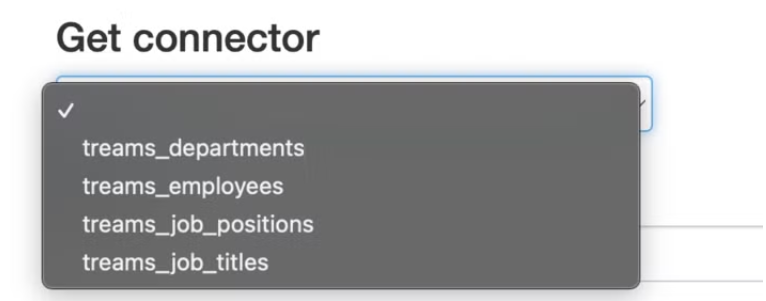
Only the GetConnectors 'treams_departments' & 'treams_employees' are required.
The GetConnectors 'treams_job_titles' & 'treams_job_positions' are optional. These files allow us to connect the job title and positions per employee.
The GetConnector 'treams_managers' is only needed if manager permissions based on departments need to be synchronized.
Verify that the GetConnectors are successfully configured. Read in the manual from AFAS How to do this.
The GetConnectors are set up for a standard AFAS environment. It is possible that there are fields in your environment that are not reflected in this structure. For example, an e-mail address may be retrieved from another field than expected by the GetConnector.
In the above case, the GetConnector can be modified. Be sure to always reapply the modifications in the same structure.
Example: When adding a new field to the GetConnector, fields by default have a name such as 'Email address', Treams' link expects the field 'email' (case sensitive). So make sure the name of your added/modified column matches the column name that Treams expects. 3. The default filters in the GetConnector may need to be adjusted because too much, too little or the wrong data is being retrieved. For example, filtering based on operating company or employer, employee type (to exclude externals, freelancers or interns) or a self-created field.
3. Authorization App Connector
In order for Treams to access the AFAS environment with the appropriate GetConnectors, a new system user and group (specific to the connector with only the necessary permissions for an App Connectors) must be created for Treams. Follow the AFAS manual to complete this step.
4. Setting up an Appconnector
To set up an App connector in AFAS, follow these steps:
Navigate to the Administration tab and click on App connector.
Click 'Add' to create a new App connector.
Give the App connector a clear description (for example, "Treams").
Select the appropriate user group (see Authorization App Connector above).
Click 'complete'
Check and save the App connector settings.
Make sure the App connector is not locked.
Under the GetConnectors tab, add the previously imported GetConnectors.
Under user tokens, add a new user. Save the token that is generated properly and securely. We will need it in the last step!
Checking that your App Connector is set up properly
To ensure Treams has access to the correct data navigate to:
You will find the environment code at the top of your AFAS environment. Use only the digits. For example, for O12345, leave out the O. You then navigate to https://12345.rest.afas.online/ProfitRestServices/
On this page, enter your generated user token under 'token' and click login. You will need this token again later! Once the login is successful, scroll to 'GetConnector' and upon clicking the dropdown menu you should see Treams' GetConnectors.
Make sure that Treams only gets access to the required data. When in doubt: consult your AFAS consultant.
5. Configuring AFAS in Treams.
The last step is to configure AFAS in Treams. Follow the steps below and you're done!
Open Treams and navigate to Management / Integrations / AFAS
Please accept the terms and conditions after reading this.
Follow the steps on the screen. At 'token' enter the generated token.
Save your settings properly.
Activate the connector when you are satisfied with your settings. Your colleagues will receive a welcome email on the set activation date.
The data is synchronized every night after activation (so you will see the data for the first time in Treams the next day).
Via https://<omgeving>.ontreams.com/v2/settings/integrations/logs heb je inzage in wat de connector heeft verwerkt. Fouten en waarschuwingen zullen hier respectievelijk rood en geel worden weergegeven.
6. Configuring a two-way connection
Treams offers the ability to upload files from Treams to AFAS. For example, PDFs of call forms can automatically appear in AFAS.
To configure this, a file item type must first be created. To do this, follow the steps below:
In AFAS, navigate to CRM / File / Setup / File Item Type.
Create the file item or choose an existing type.
Turn on file linking if not already.
When necessary, mark the file item as confidential.
Under destinations, make sure the destination collaborator is optional or mandatory. All other destinations should not be allowed or optional.
It is good to remember the attribute combinations and file item type code set in AFAS. You will need these later when configuring in Treams.
Go to Management / App connector
Select the previously configured App connector for Treams
Click UpdateConnectors and click New
Search for "File" (Connector-Id "KnSubject"), select this line and click Finish
Connect the App connector
Configuring the two-way connector in Treams
The below will be available soon, for now please contact your Treams contact person to set up the below.
Open Treams and navigate to Management / Integrations / AFAS
In the destination for calls, for example, enter the following:
For example, with a file item 64 and attribute 101 you enter 64,101 here. Therefore, if you don't have an attribute you only enter 64.
After saving these settings for calls, they will (After the call is confirmed) be automatically uploaded in AFAS every night under your set location.
7. assign individual (1-1) rights
In the Treams employeeGetConnector, you have the ability to assign 1-1 permissions. Here you can specify per employee who their manager / cooperating manager / coach or buddy is. We assume here the employee number of this person. A maximum of 1 person of each type of right can be assigned. For example, an employee can have a coach and a buddy, but not 2 buddies.
These columns should have the following names: primaryManagerID , collaborativeManagerID, coachID or buddyID. If an employee has a field (for example) 'manager' with staff number 1234, you can connect it to the column primaryManagerID. The employee is then assigned the person with the personnel number 1234 as manager in Treams. An incorrect value in the column will result in an error message in the logbook. The logbook can be found in Treams under management > integrations > logbook.
Any questions about the link between Afas and Treams?
If you want to know more about the possibilities, the execution or have other questions, please let us know. We will be happy to help you further.
With Treams' simple software you give your employees what really motivates them: clear goals, feedback and development perspectives.
Our data tells you exactly what's going on and how to get the most out of your people.